Your ads will be inserted here by
AdSense Now!.
Please go to the plugin admin page to paste your ad code.
Hello everybody welcome to tutorial 221, in this tutorial il show you how to hard code an “about the author box” at the bottom of every post.
What We’ll Be Creating
Firstly let me show you what we’ll be creating, recently i added an about the author box to this blog. Located at the bottom of every post you will see a grey box which looks like this.

The way its constructed is really easy, we’ll use simple CSS and HTML for the box and the way its looks then we’ll use author template tags to add the dynamic content, which includes the thumbnail.
You can see all the tags associated with the author tag within wordpress here
The Box HTML Markup
The HTML has to be added within the wordpress loop, the HTML markup for the box looks like this.
|
1
2
3
4
5
6
7
8
9
10
11
12
13
14
15
|
<div id="article-author"><!--ABOUT AUTHOR STARTS--><h3>About The Author: Richard Carpenter</h3><div id="author-image"><!--AUTHOR IMAGE--><img src="http://www.hv-designs.co.uk/site_images/author_images/01.gif" alt="About The Author" /></div><!--END AUTHOR IMAGE--><div id="author-text"><!--AUTHOR TEXT STARTS--><p>Hi im Richard Carpenter im a freelance web and graphics designer from England. I am also a regular Blogger, Tutorial Writer, and owner of HV-Designs. You can follow me on twitter HERE. You may also view my portfolio HERE.</p><p> </p>Richard Carpenter has written 254 posts.</div><!--AUTHOR TEXT ENDS--></div><!--ABOUT AUTHOR ENDS--> |
We start off with a DIV of “article-author”, within that DIV we add our header wrapped in a H3 tag. Yours might be a different header depending on how your blog is designed and coded.
Still inside the “article-author” DIV there’s two more DIV’s “author-image” and “author-text”. The “author-image” DIV will contain our 80px X 80px thumbnail image and the “author-text” DIV will contain our text. Pretty straight forward stuff.
The Box CSS Styles
The CSS styles for the HTML markup look like this.
|
1
2
3
4
5
6
7
8
9
10
11
12
13
14
15
16
17
18
19
20
21
22
23
24
25
26
27
28
29
30
31
32
33
34
35
36
37
38
39
40
41
42
43
44
45
46
47
|
#article-author {float: left;width: 598px;margin-top: 30px;border: 1px solid #d9d9d9;background-color: #E9E9E9;padding: 10px;clear: both;}#article-author a {color: #56b0d8;}#article-author a:hover {color: #000;}#author-image {float: left;height: 80px;width: 80px;border: 1px solid #d9d9d9;background-color: #FFFFFF;padding: 10px;}#author-text {float: left;width: 486px;margin-left: 10px;margin-top: 8px;}#author-text p {font-size: 12px;line-height: 18px;}h3 {color: #000000;text-transform: capitalize;font-weight: normal;font-size: 18px;letter-spacing: -1px;margin-bottom: 10px;} |
Integrating The First Template Tag
To integrate the tags we just need to replace some of the words in our HTML markup to the PHP template tags. The first tag we can integrate will be the “the_author_link();” tag, here’s the description from the wordpress codex, located HERE
This tag displays a link to the Website for the author of a post. The Website field is set in the user’s profile (Administration > Profile > Your Profile). The text for the link is the author’s Profile Display name publicly as field. This tag must be used within The Loop.
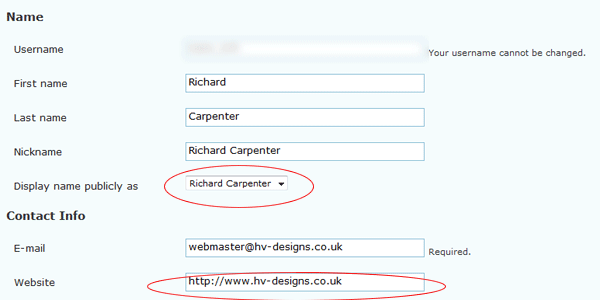
Replace the bits of text which uses your name or the “authors name” with the “author-link” template tag.
Your ads will be inserted here by
AdSense Now!.
Please go to the plugin admin page to paste your ad code.
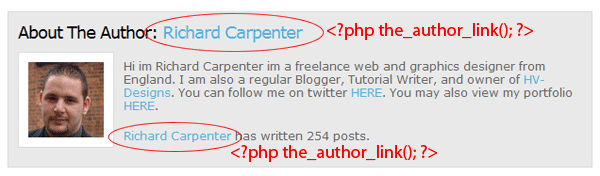
The markup should now look like this.
|
1
2
3
4
5
6
7
8
9
10
11
12
13
14
15
|
<div id="article-author"><!--ABOUT AUTHOR STARTS--><h3>About The Author: <?php the_author_link(); ?></h3><div id="author-image"><!--AUTHOR IMAGE--><img src="http://www.hv-designs.co.uk/site_images/author_images/01.gif" alt="About The Author" /></div><!--END AUTHOR IMAGE--><div id="author-text"><!--AUTHOR TEXT STARTS--><p>Hi im Richard Carpenter im a freelance web and graphics designer from England. I am also a regular Blogger, Tutorial Writer, and owner of HV-Designs. You can follow me on twitter HERE. You may also view my portfolio HERE.</p><p> </p><?php the_author_link(); ?> has written 254 posts.</div><!--AUTHOR TEXT ENDS--></div><!--ABOUT AUTHOR ENDS--> |
Author Images
If your the only author on your blog you can add your 80px X 80px image using the normal method, just linking to the image from one of your folders within your site directory. If you have multiple authors you can use the “author-id” tag to display the image. Each author on your blog providing you’ve setup the author in the wordpress users panel is assigned a unique ID. You can find out the ID by hovering over a author link in the edit posts area.

Once you’ve found out the unique ID label the image as the ID, so my unique ID is “1″ so id rename my image “1.png” or “1.gif” place the image in a folder on your server. We then add the “author-id” template tag where the name of the image would be. The HTML looks like this
|
1
2
3
|
<div id="author-image"><!--AUTHOR IMAGE--><img src="http://www.hv-designs.co.uk/site_images/author_images/<?php the_author_ID();?>.gif" alt="About The Author" /></div><!--END AUTHOR IMAGE--> |
Author Description
Inside the author-text DIV we need to delete the text and the paragraph tags then replace with the “author-description” tag. You then need to fill in the biography part under users within wordpress with some author text.
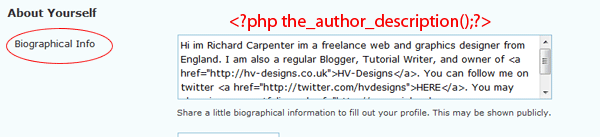
The HTML looks like this
|
1
2
3
4
5
|
<div id="author-text"><!--AUTHOR TEXT STARTS--><?php the_author_description();?><p> </p><?php the_author_link(); ?> has written 254 posts.</div><!--AUTHOR TEXT ENDS--> |
Optional Tags
On my about author section i have also got abit of text which says “php the_author_link();” has written 254 posts. Where 254 is we can add in another template tag so this number updates every time the author posts. The template tag we use for this is the “author-posts” tag.
Displays the total number of posts an author has published. Drafts and private posts aren’t counted. This tag must be used within The Loop. More info HERE
The HTML looks like this.
|
1
2
3
4
5
|
<div id="author-text"><!--AUTHOR TEXT STARTS--><p>Hi im Richard Carpenter im a freelance web and graphics designer from England. I am also a regular Blogger, Tutorial Writer, and owner of HV-Designs. You can follow me on twitter HERE. You may also view my portfolio HERE.</p><p> </p><?php the_author_link(); ?> has written <?php the_author_posts(); ?> posts.</div><!--AUTHOR TEXT ENDS--> |
The Whole Code
So finally our about author code looks like this.
|
1
2
3
4
5
6
7
8
9
10
11
12
13
14
15
|
<div id="article-author"><!--ABOUT AUTHOR STARTS--><h3>About The Author: <?php the_author_link(); ?></h3><div id="author-image"><!--AUTHOR IMAGE--><img src="http://www.hv-designs.co.uk/site_images/author_images/<?php the_author_ID();?>.gif" alt="About The Author" /></div><!--END AUTHOR IMAGE--><div id="author-text"><!--AUTHOR TEXT STARTS--><?php the_author_description();?><p> </p><?php the_author_link(); ?> has written <?php the_author_posts(); ?> posts.</div><!--AUTHOR TEXT ENDS--></div><!--ABOUT AUTHOR ENDS--> |
and that concludes this tutorial.
Your ads will be inserted here by
AdSense Now!.
Please go to the plugin admin page to paste your ad code.