Subscribe Via RSS

0 Subscribers

Subscribe Via RSS
Subscribe Via Twitter

Followers

Subscribe Via Twitter
Learn How To Create Metal Textured Text

May 13th, 2010 in Photoshop Tutorials by Richard Carpenter

Learn How To Create Metal Textured Text

1 Star2 Stars3 Stars4 Stars5 Stars18 Votes, Rating: 4.17
Loading ... Loading ...

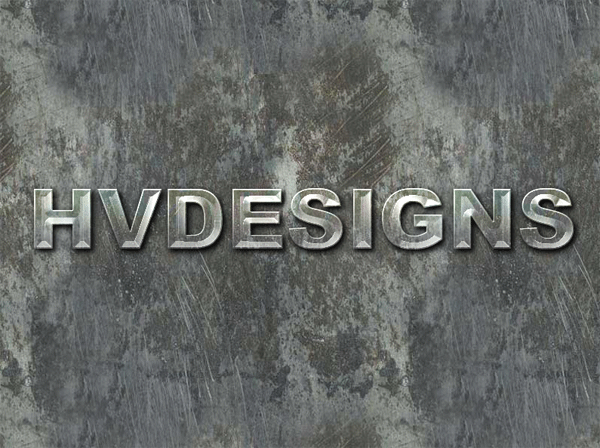
Today were going to be creating something a little bit different. Were going to be using a mixture of textures and layer styles to create the perfect looking rough metal style text.

What We’ll Be Creating

Click the image for full view.

Metal Text Tutorial

Resources Used In This Tutorial

Lets Get Started

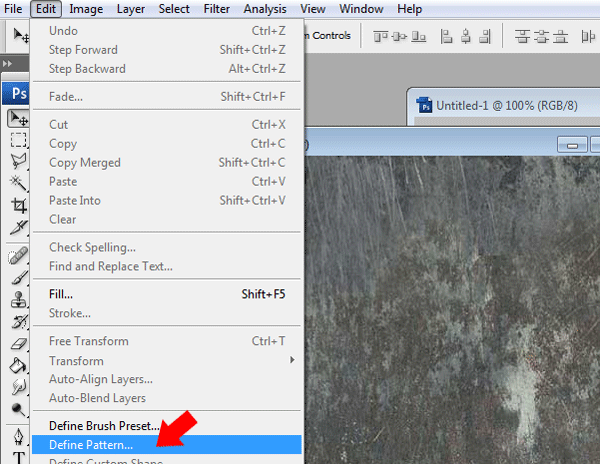
Create a new document 800 x 600 pixels with any background color. Download the “Metal Texture then open it in photoshop, once opened in photoshop go to “Edit > Define Pattern”.
Metal Texture Tutorial

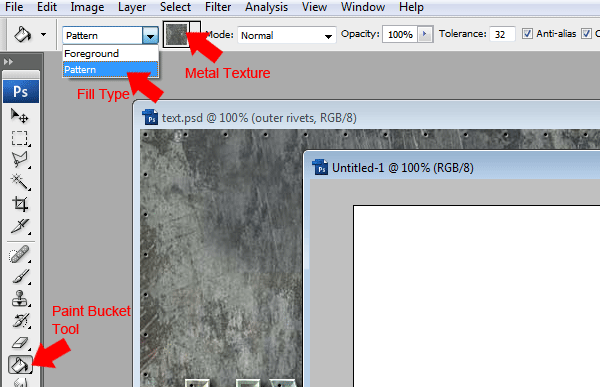
Close the texture document window and go back to your original document. Fill your background layer with the metal texture by selecting the paint tool with the pattern fill type selected.
Metal Texture Tutorial

Adding The Text

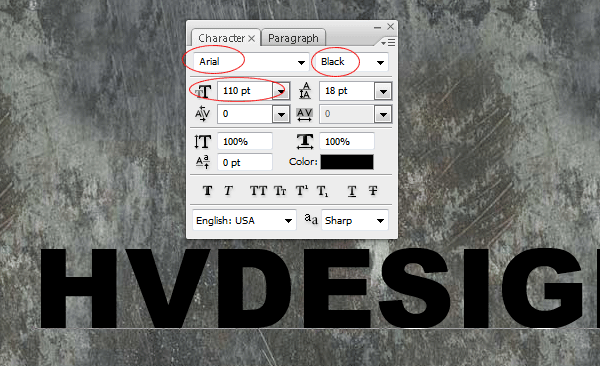
Select the type tool then add your text to the canvas. Use a fairly big font type so the text stands out. Here are my settings.
Metal Texture Tutorial

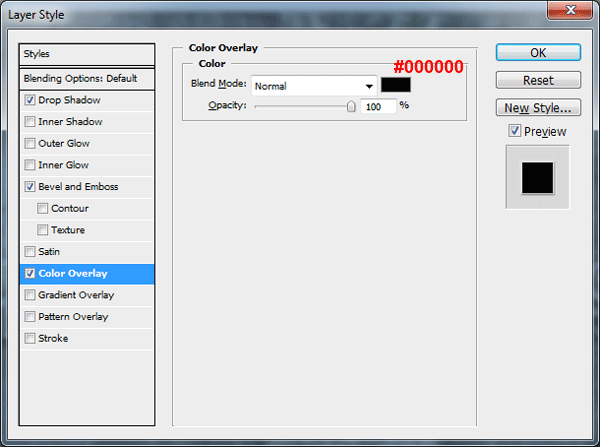
Once you’ve added your text add the following layer styles to your text layer.
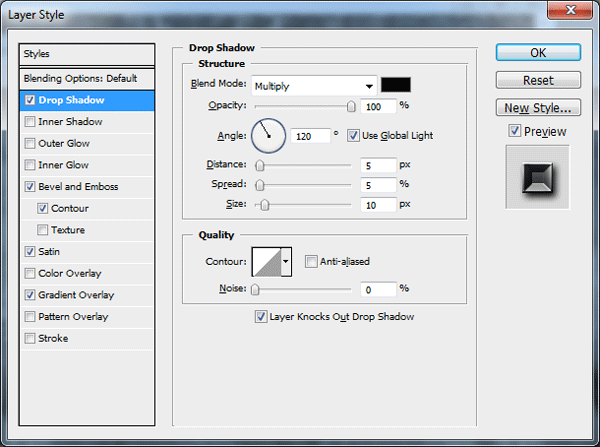
Metal Texture Tutorial

Metal Texture Tutorial

Metal Texture Tutorial

Metal Texture Tutorial

Metal Texture Tutorial

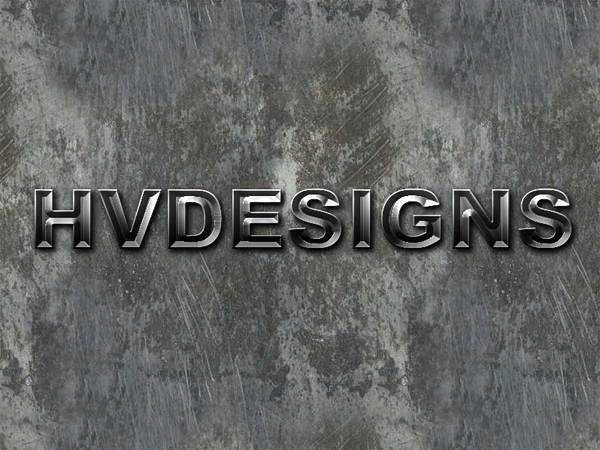
You should have something like this.
Metal Texture Tutorial

Adding The Texture To The Text

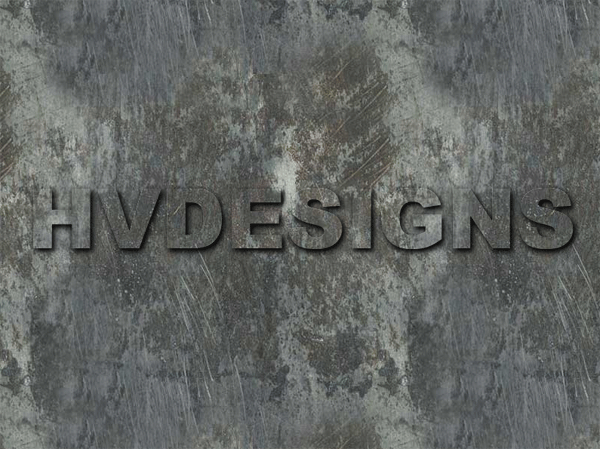
Load a selection around your text layer by selecting the text and going to “Select > Load Selection” OR simply click the little thumbnail in the layers palette whilst holding down the CTRL key on the keyboard.

Create a new layer above your text layer then fill the selection with your metal pattern.
Metal Texture Tutorial

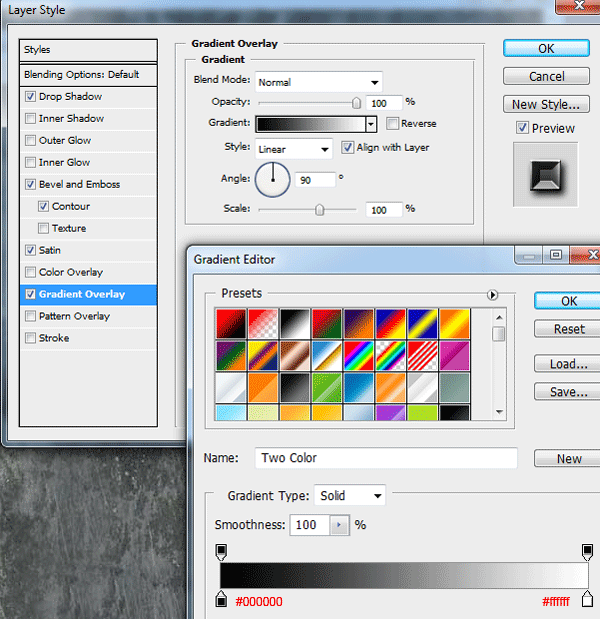
Now that you’ve filled the selection set the layer blend mode to screen and add a gradient overlay using the settings below.

Metal Texture Tutorial

You should have something like this.

Metal Texture Tutorial

Adding Depth To The Text

Load a selection around your text layer once again by selecting the text and going to “Select > Load Selection” OR simply click the little thumbnail in the layers palette whilst holding down the CTRL key on the keyboard.

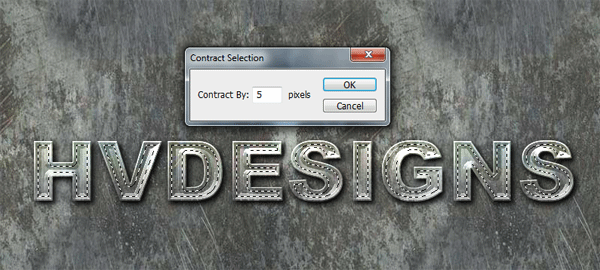
Create a new layer above your textured text filled layer then contract the selection by 5px by going to “Select > Modify > Contract”.
Metal Texture Tutorial

Reset your background foreground layers to black and white then fill the selection with some clouds by going to “Filter > Render > Clouds”.
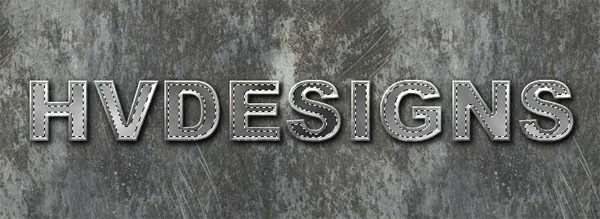
Metal Texture Tutorial

Now go to “Filter > Render > Difference Clouds”.

Metal Texture Tutorial

Finally set the layers blend mode to “Soft Light”, you should have something like this.
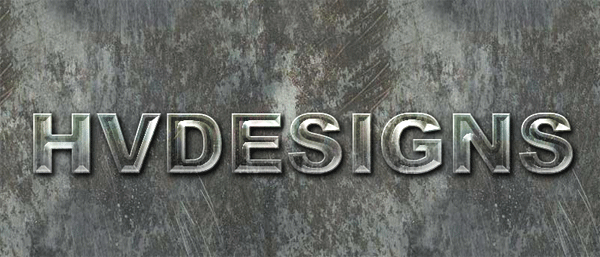
Metal Texture Tutorial

Adding The Rivets

Load a selection around your text layer once again by selecting the text and going to “Select > Load Selection” OR simply click the little thumbnail in the layers palette whilst holding down the CTRL key on the keyboard.

Create a new layer above all your layers then contract the selection by 6px. (Select > Modify > Contract) Keep the selection active and select your brush tool. Once you’ve selected the brush tool open up the brushes palette.
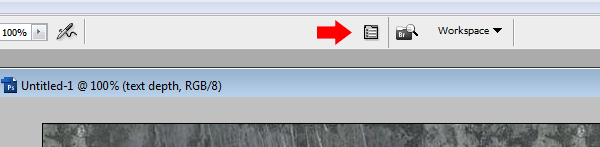
Metal Texture Tutorial

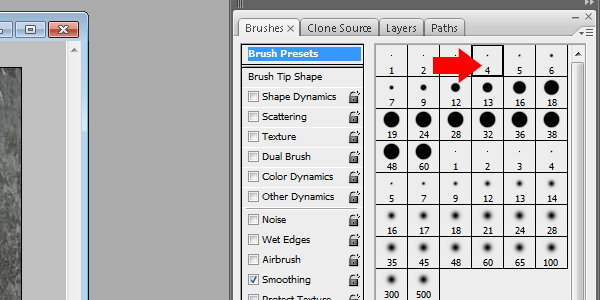
Select a brush size of 4.

Metal Texture Tutorial

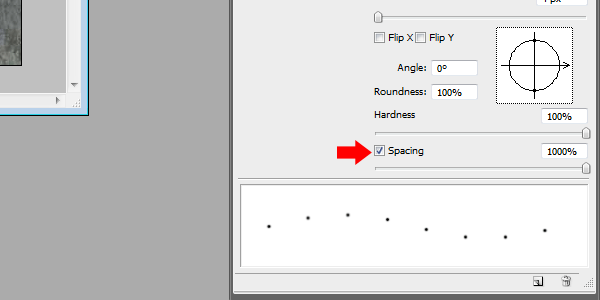
Then set the brush spacing to 1000%.

Metal Texture Tutorial

Now open up the paths window by going to “Window > Paths”, at the bottom of the paths window click the little button which says “Make Work Path From Selection”.
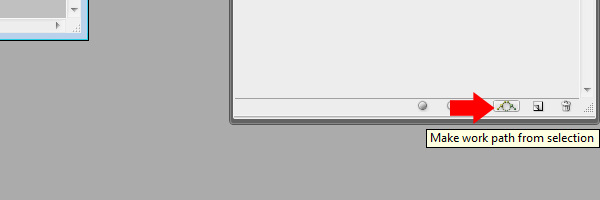
Metal Texture Tutorial

Head back to your layers palette and make sure your new blank layer is selected. Select the pen tool and then right click on your canvas and go to “Stroke Path”. Right click again and go to “Delete Path”.
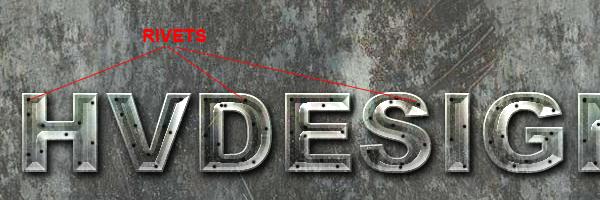
Metal Texture Tutorial

Add Some Style To The Rivets

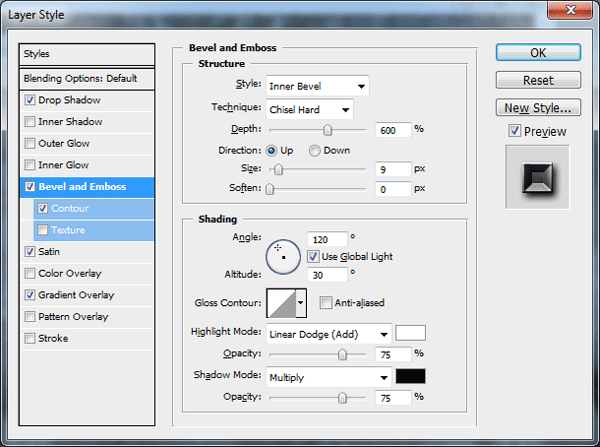
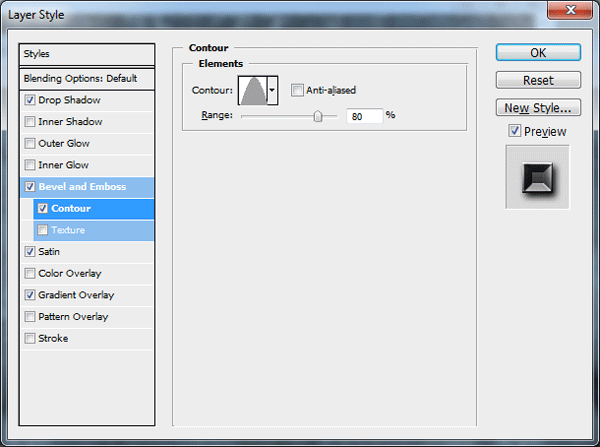
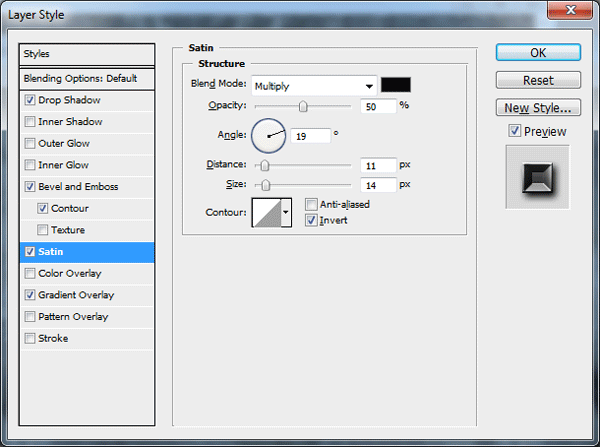
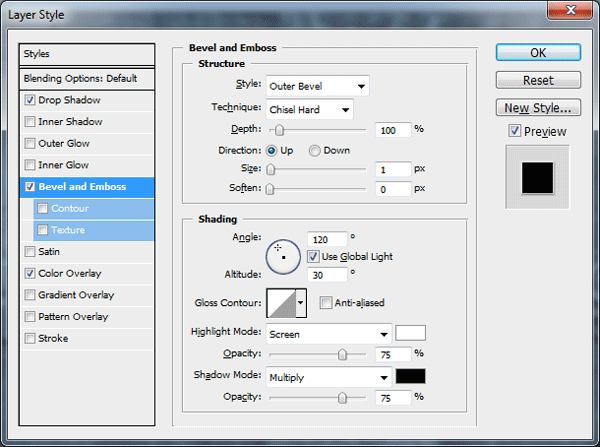
With your rivets layer selected add the following layer styles.

Metal Texture Tutorial

Metal Texture Tutorial

Metal Texture Tutorial

You should have something like this.
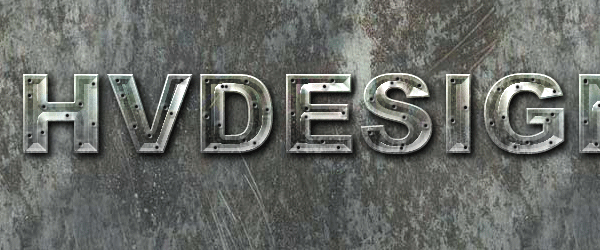
Metal Texture Tutorial

Repeat the same process for your background layer to add the rivets to your background.

That’s it all done, hope you enjoyed this tutorial. I’ll look forward to your comments.

About The Author

About The Author: Richard Carpenter

Hi im Richard Carpenter and im a freelance web and graphics designer from England. I am also a regular Blogger, Tutorial Writer, and owner of Photoshop Plus. You can follow me on twitter HERE. You may also view my portfolio HERE.


Richard Carpenter has written 364 posts.

Be Part Of The Community!

Become part of the hv-designs community.

Subscribe Via RSS or Follow Us On Twitter.

Subscribe Via RSS Follow Us On Twitter

49 Responses to “Learn How To Create Metal Textured Text”

  1. Ec says:

    Pretty Sweet Outcome
    Have to try this one

  2. Simple and lovely!

  3. Gary says:

    Awesome. This is exactly what I had in mind for logo on a new website related to heavy metal. Thanks a ton!

  4. Here to help ;)

  5. Luke says:

    Well, done, I really like the effect. I’m trying to find a way to make it all one layer. So that you don thave to edit two like in the tutorial.. If i find a way, I’ll tell yoU!

    Thanks for another inspiring and fantastic tutorial

  6. xphunt3r says:

    Once again a great texture tutorial…. Nice Outcome

  7. xab101 says:

    cool!!!

  8. krike says:

    pretty cool and nice effect

  9. Jbert says:

    I am so glad I visited the site again, been out for a while. My metal turned out almost like yours with the exception of the rivets. I did not have that many. I did use different text and they were not all caps. At one point in the article you mentioned putting a new layer over the textured layer. Would this new layer had to be brought down or is the top where it should be.

    Great explanation as usual.

    JIM

  10. Angel Andraca says:

    Hey there Richard!
    I love your work! Thanks for great tutorials! Keep up the good work =)

  11. @Jbert – the layer should be on top of your text. i’l be releasing the PSD next friday so you’ll be able to experiement with my PSD file. Stay Tuned…

  12. James Qu says:

    absolutely fantastic tutorial. added to my facebook fan page. the rivets creation part is the highlight of the tutorial. Great work!

  13. yash says:

    it was a gud 1

  14. abeedo21 says:

    cool

    thnx

  15. ion says:

    this is genius. thanks

  16. Paulo says:

    Thanks

  17. PsdDude says:

    Another great text effect from Richard!

  18. AWESOME!!!

    This tutorial is very easy to follow and my result was spot on! Thanks a ton!

  19. ??? ????? says:

    good,very good

  20. Chris says:

    Very nice tutorial, easy to follow and it looks like real metal! Great site too bro

  21. ali says:

    this is a great tut,thanks for sharing, keep up the great work!
    really like your tutorials.

  22. jonathan hans says:

    Pretty cool man, real awesome

  23. Great tuto thanks man.

  24. yorel says:

    thanks dude ! very helpfull

  25. OMG THANK YOU!
    It look sooo awesome :)
    Here what i made :)
    btw i didn’t use the whole tutorial, because i think it looks better with only the first part :) http://i52.tinypic.com/29lldgh.jpg

  26. just0408 says:

    Very nice, thanks!

  27. Drew Lund says:

    Just went through this tutorial with my letters of choice & really enjoyed the outcome, thanks so much for this
    I’m a recent Grad student from CATO in Kelwona & the classes were so fast that simple process like this were often overlooked.

    Thanks & I will be really looking at your tutorials a lot in the future

    D Lund

  28. Max Hausmann says:

    Very Nice Tutorial!

  29. Oh! Very nice, thank you 4 sharing, but if I find this style a bit more polished, the more absolute.

  30. Neroli says:

    Thank you!!! Just what I needed for a logo I’m currently making. Love the internet and especially love such talented designers sharing their skills!! Thanks again!

  31. Very Helpful tutorials

  32. white says:

    this cool

Leave a Reply