Subscribe Via RSS

3910 Subscribers

Subscribe Via RSS
Subscribe Via Twitter

Followers

Subscribe Via Twitter
WordPress Layout #6

October 8th, 2009 in Photoshop Tutorials by Richard Carpenter

WordPress Layout #6

1 Star2 Stars3 Stars4 Stars5 Stars21 Votes, Rating: 4.52
Loading ... Loading ...

Welcome to tutorial 230, in this tutorial il be showing you how to create a sleek, clean and spacious wordpress blog.

Setting Up The Canvas And Guides

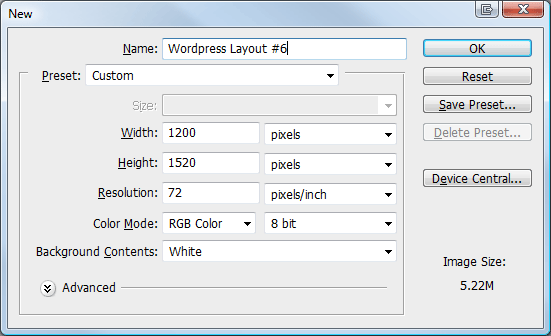
Create a new document 1200 x 1520, fill your background layer with the color #e6e6e6.
Step1

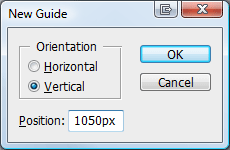
The layout were making is going to be 900px wide, so were going to need to setup some guides. Go to “view > new guide” from the menu at the top, in the box that pops up enter the following settings.
Step2

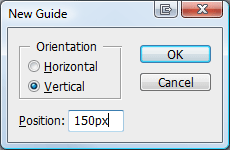
Do the same again only this time enter these settings.
Step3

Creating The Header

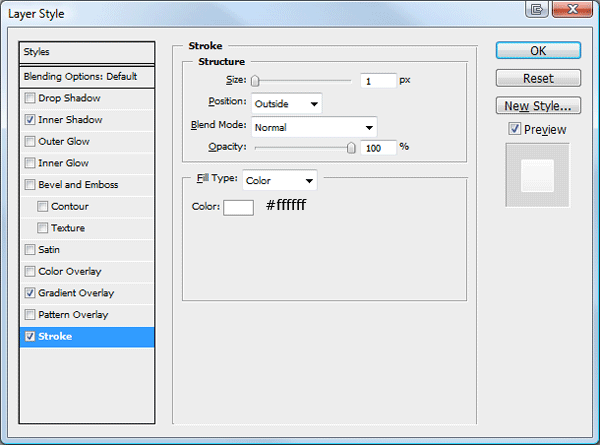
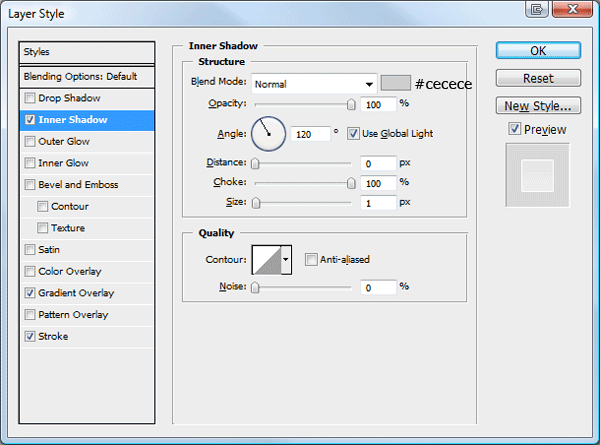
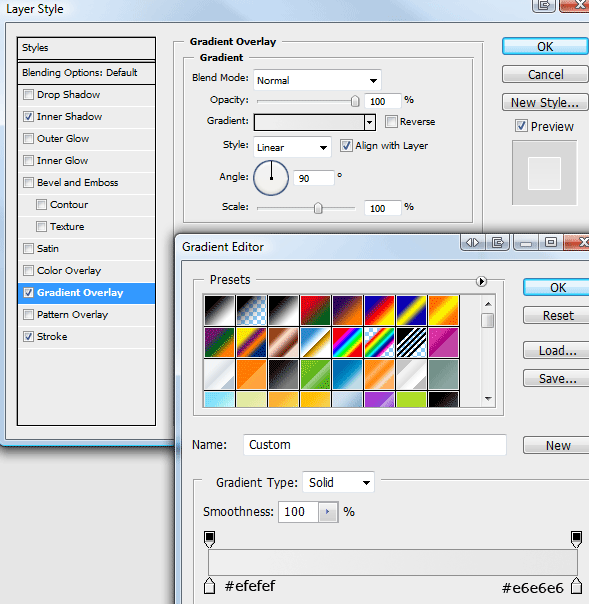
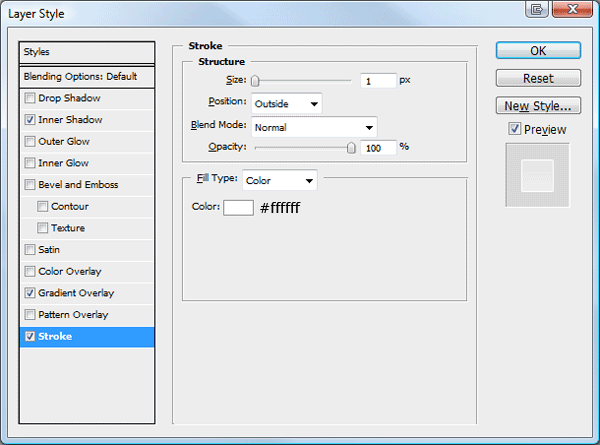
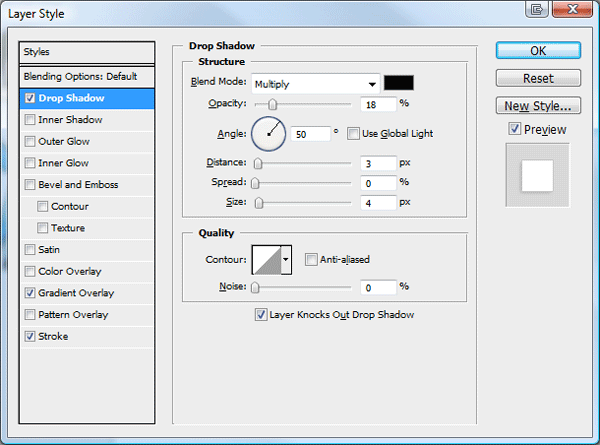
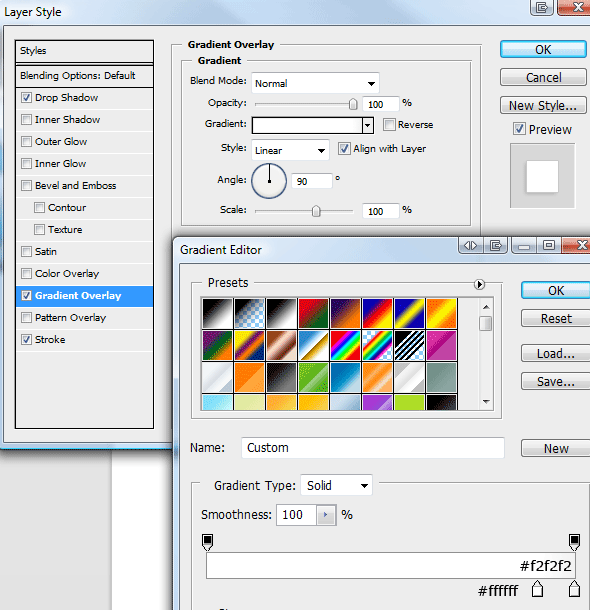
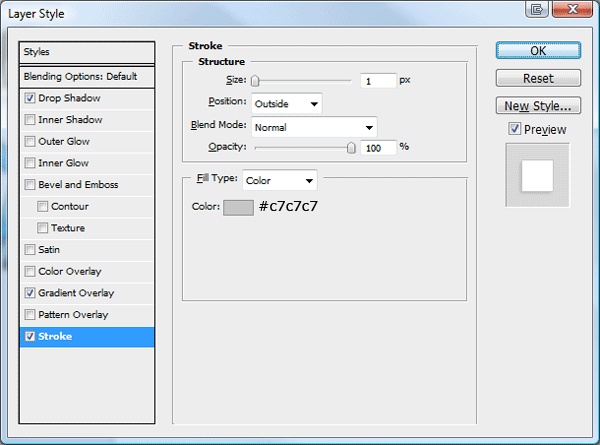
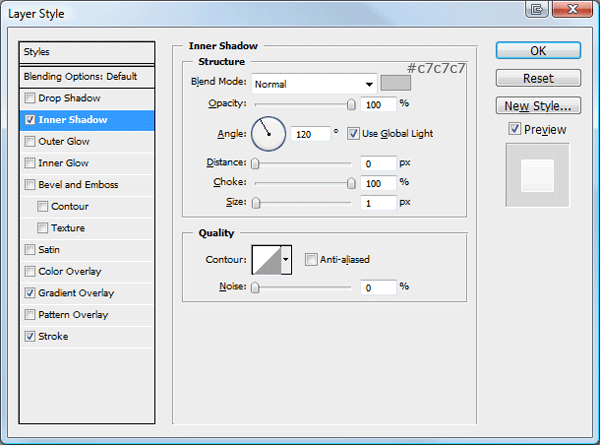
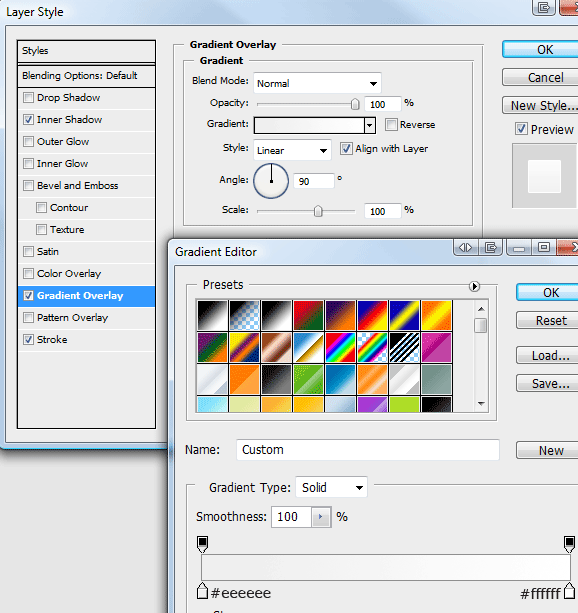
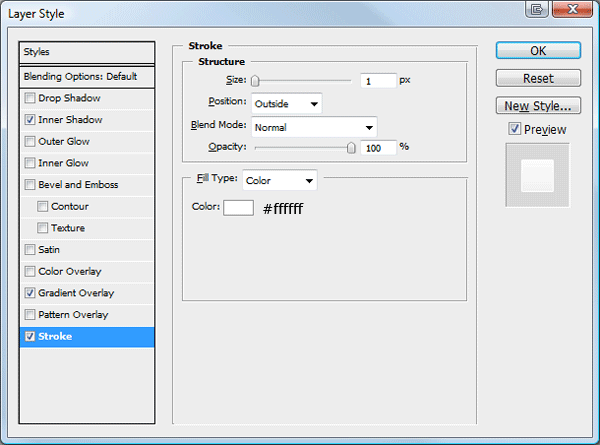
Select the rectangular marquee tool, then create a rectangle the width of the canvas and about 80 pixels in height. Fill the rectangle with any color then add these layer styles.
Step4

Step5

Step6

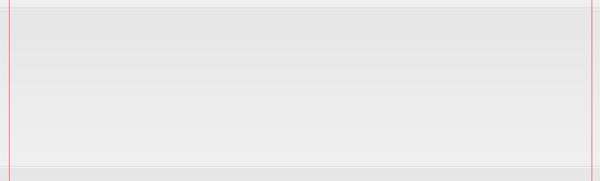
You should have something like this.

Step7

On the left side add your wordpress website title and slogan, fill the text using the color #979797. Once you’ve added your title and slogan add a drop shadow using the settings below.

Step8

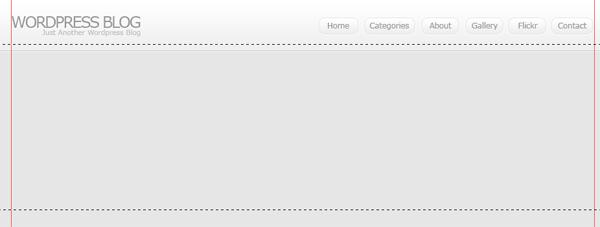
You should have something like this.

Step9

Creating The Navigation

Using the text tool add some dummy links to the right side of the header.

Step10

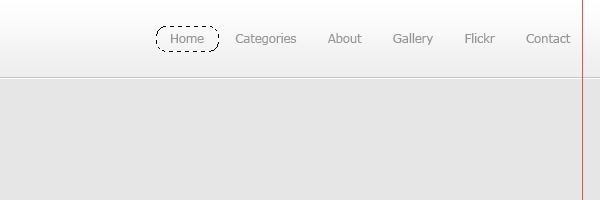
Using the rounded rectangle tool make a selection around each navigation link.

Step11

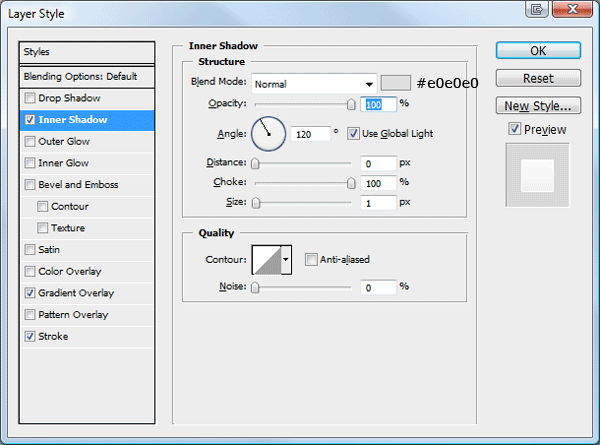
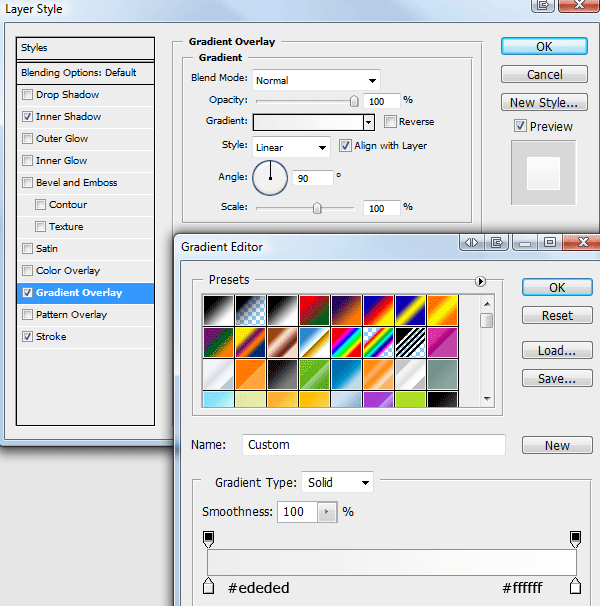
Fill the rectangles in any color then add these layer styles.
Step12

Step13

Step14

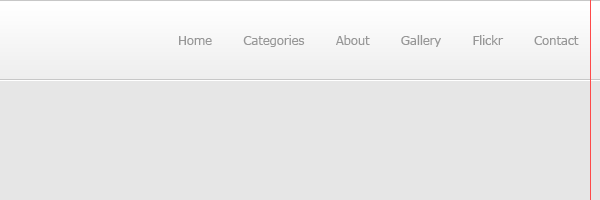
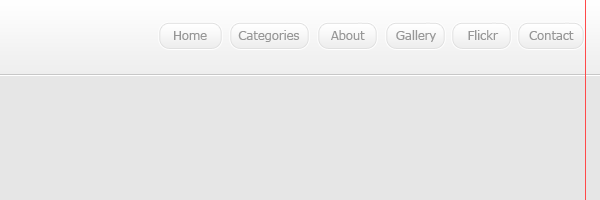
You should have something like this.

Step15

Creating The Welcome Area

Using the rectangular marquee tool make a selection underneath the header, make sure the selection is on a new layer underneath the header.

Step16

Fill the selection with any color then add these layer styles.

Step17

Step18

Step19

You should have something like this.

Step20

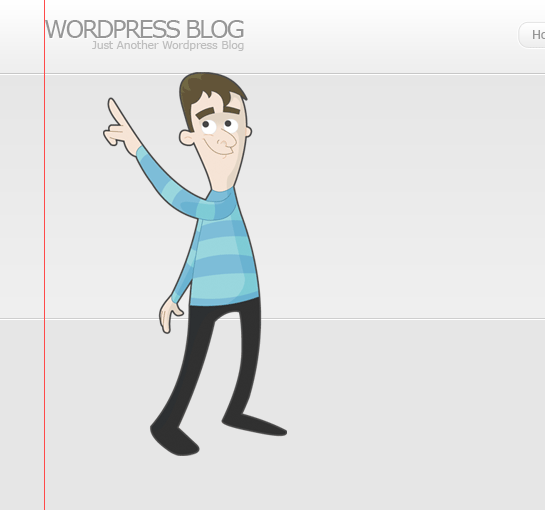
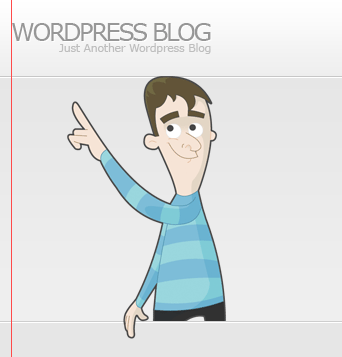
Were now going to add a character from wefunction, click here (http://wefunction.com/2008/11/free-character-pack/) and download the character pack. Once you’ve downloaded it, extract it too your hard drive then open up “002__002.eps” in photoshop. Drag the character over onto your canvas and position it like the image below.

Step21

Chop the characters legs off just below the stroke on the welcome area.

Step22

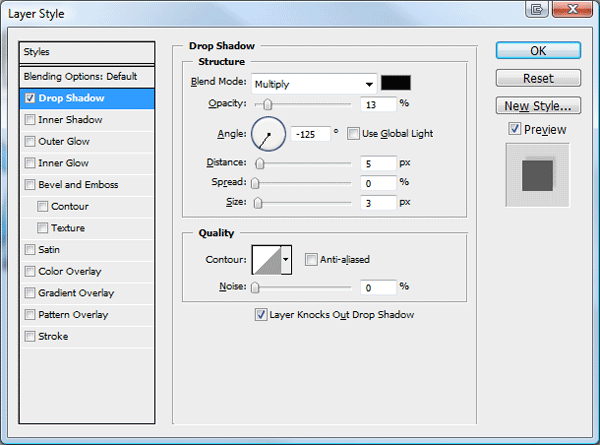
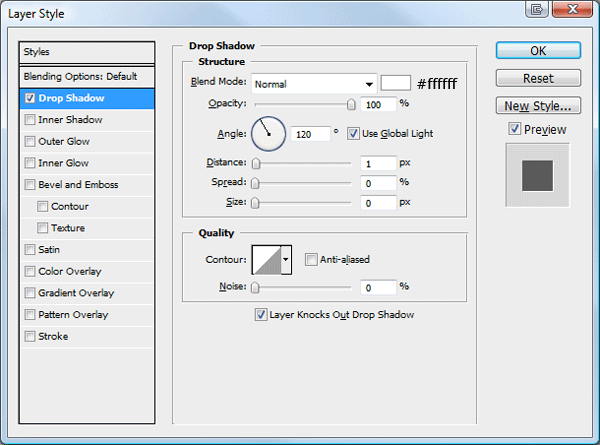
Finally add a drop shadow using the settings below.
Step23

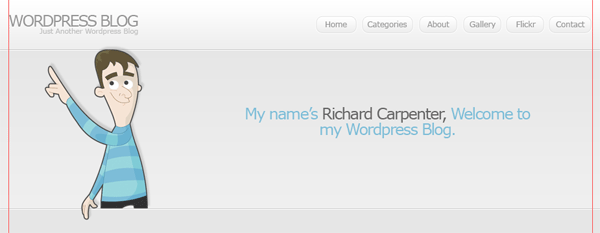
On the right side of the character add a simple sentance about your blog.

Step24

Creating The Content Area

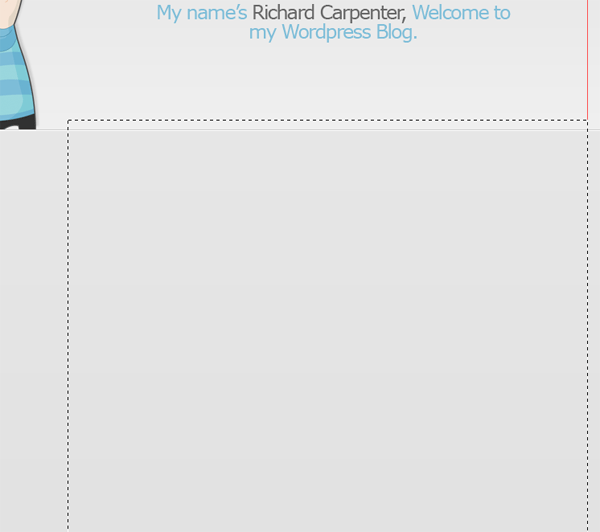
Select the rectangular marquee tool and make a selection on the right side of the canvas against the right guide. the rectangle should be about 600 pixels in width and as long as you see fit, you can always resize the rectangle later to fit the content.

Step25

Fill the selection with any color then add these layer styles.

Step26

Step27

Step28

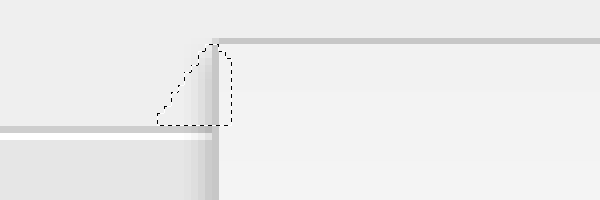
Create a new layer underneath the content rectangle, then select the polygonal lasso tool. On the corner of the content rectangle create a triangular shape like the image below.

Step29

Make sure the selection doesn’t go below the welcome area’s stroke. Once you’ve created the selection fill it with the color #a9a9a9. You should have something like this.
Step30

Mocking Up The WordPress Posts

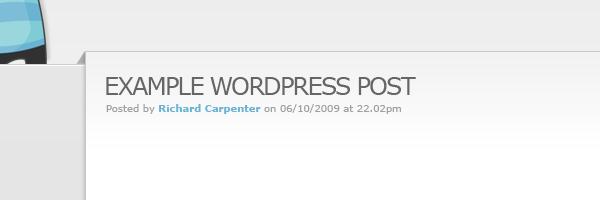
Inside our content area, lets begin to mock up our dummy posts. Select the type tool and add an example posts title using the color #666666 and font size 24pt. Underneath the post title add some meta data (E.G post time, post date, author and category).
Step31

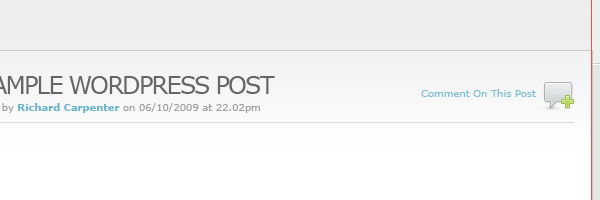
Underneath the post meta data add a 1 pixel line using a light grayish color. Now head over to woothemes and download this icon pack (http://www.woothemes.com/2009/09/woofunction-178-amazing-web-design-icons/). On the right side of the post title add the speech bubble icon with some text saying comment here.
Step32

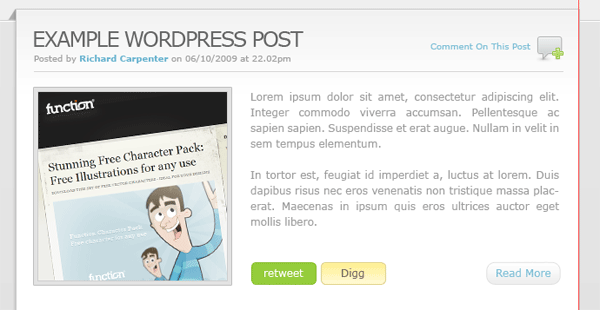
Finish off the post with a dummy image and some dummy text. After you’ve added the dummy text add a read more button using the buttons from the navigation. Ive also thrown in some social buttons for good measure.
Step33

Creating The Sidebar

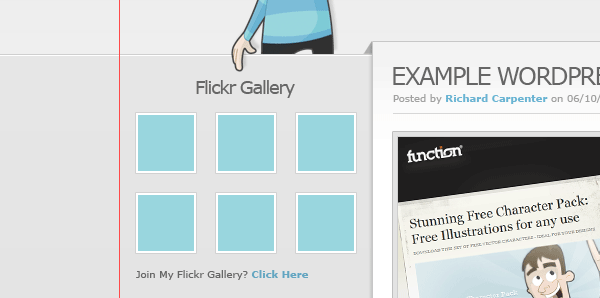
The sidebar will be located on the left side, opposed to many blogs which display it on the right. In the sidebar im going to add a flickr gallery first, create a heading using a font size of 18pt, use the color #666666 for the heading color.
Step34

Underneath the flickr gallery title add some small thumbnail like images to act as our dummy flickr gallery. Before we continue adding our sidebar elements let seperate each part using a simple separator. Select the rectangular marquee tool, then create two 1 pixel lines on top of each other. Fill the lines in two different colors, the line thats on the bottom fill with white and the line that sits on top fill in a grayish color darker than the sidebar background. Finally drag the separator lines layer underneath the content box layer so they disapear nicely behind the content box.

Step35

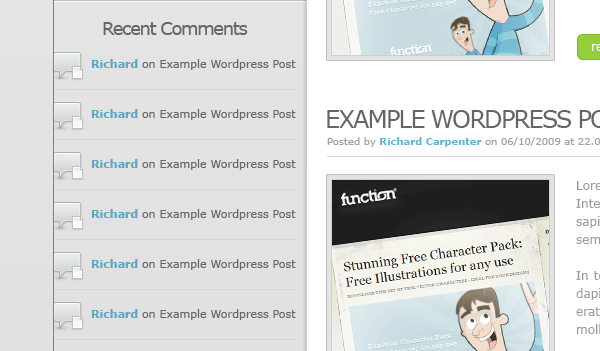
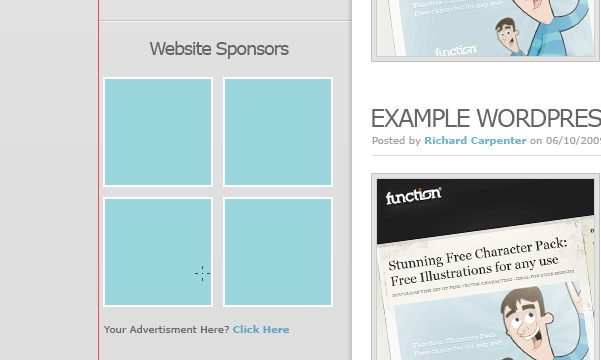
Continue to bloat out your sidebar with the elements you’d want in the sidebar, ive added a simple recent comments list and some website sponsors.
Step36

Step37

Creating The Footer

Duplicate your welcome area background then drag it down to the bottom of the canvas. Open up the layer styles window then switch the colors between the stroke and the inner shadow. You need the make sure the white line is underneath the dark gray line else you wont get the indented effect.
Step38

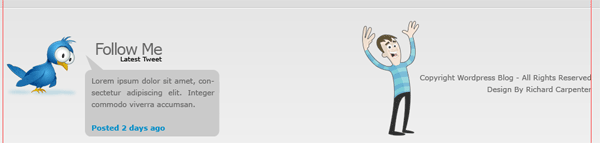
On the left side of the footer add a nice twitter icon with speech bubble next to it. The speech bubble was from the custom shapes libary from within photoshop.
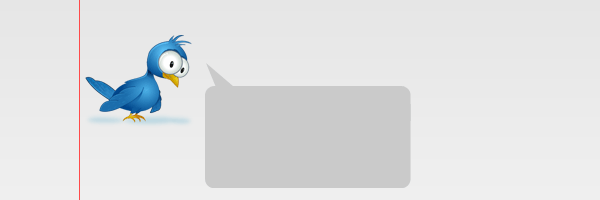
Step39

Add a dummy twitter post inside the speech bubble then stick a header over the top. On the right side of the footer add your copyright information and maybe another little character image from wefunction.
Step40

Creating The Pagination

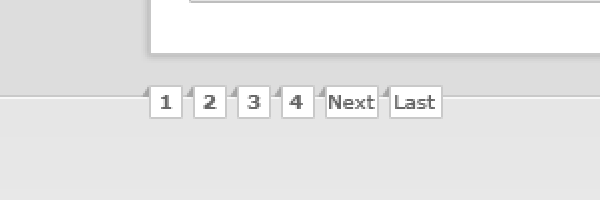
Select the rectangular marquee tool or the rectangle tool and create a couple of square boxes just over the footer stroke. Using the same method as we did for our content box , add the little triangular grey shapes to make them look as if they are wrapping around the footers stroke.
Step41

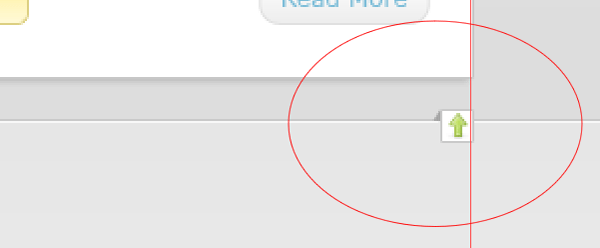
On the right side of the footer add 1 single square with a little arrow inside it, again use the same method as above to get the 3D effect.
Step42

Well Done… Finished

Thats it all done, heres the finished layout.
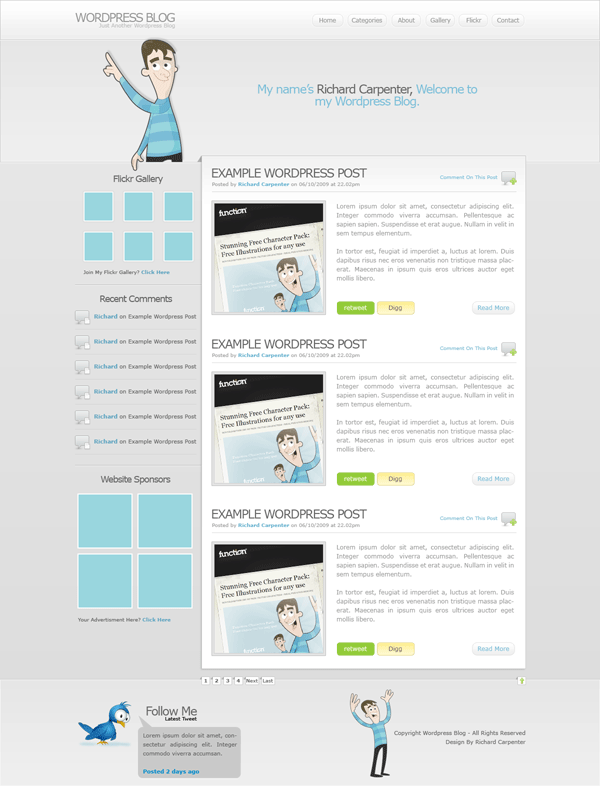
Finished Layout

Final Note

Thanks for taking part in this tutorial, il look forward to your comments. Also look out for the finished wordpress theme which will be available to download for FREEEE. Subscribe via our RSS feeds to stay tuned.

Thank You.

About The Author

About The Author: Richard Carpenter

Hi im Richard Carpenter and im a freelance web and graphics designer from England. I am also a regular Blogger, Tutorial Writer, and owner of Photoshop Plus. You can follow me on twitter HERE. You may also view my portfolio HERE.


Richard Carpenter has written 364 posts.

Be Part Of The Community!

Become part of the hv-designs community.

Subscribe Via RSS or Follow Us On Twitter.

Subscribe Via RSS Follow Us On Twitter

73 Responses to “WordPress Layout #6”

  1. Steve says:

    Really nice again, I love these tutorials.
    This is slowly becoming one of my fav places for tuts, so clear and well written.

    Can I ask, will you release the wordpress theme for this as a tutorial itself?
    I’d like to follow it as a tutorial to go from step one to the final product, much like the last one you did.

  2. Prowl says:

    Looks great just too much gray for me!

  3. Abraham says:

    This is a very dope layout – will you be converting it to a standard compliance CSS & HTML?

    Postin’ from LA

  4. a new updated wordpress tutorial is definetly on the cards now im abit more experienced in that field.!

    i just have so many items on my to-do-list at the moment. But il be definetly be doing one.

  5. DxDesigns says:

    The template looks awesome and the tutorial is well done as per usual. Great job yet again!

  6. Gordon says:

    it’s always the same with you – cool ideas (details), good concepts, great jobs. well done. keep on designing, richard. greetings from berlin, germany.

  7. SkullTraill says:

    OMG!!! You are soooo pro!
    Will you be my tutor?
    Please be my teacher!!
    These stuff is SO AWESOME!!!

  8. Thanks for your comments, much appreicated

  9. Lawny says:

    nice and clean layout i would love to convert this into a blogger template

  10. Jason says:

    nice layout love the color scheme

  11. Jason says:

    also looking forward to the wordpress tutorial :)

  12. Lawny says:

    may i ask if you have any free PSDs which i could convert to blogger templates and give them out for free on my blog with a link in the footer saying “Design by Hv-designs Bloggerized By LawnyDesigns” ?

  13. Ahmed says:

    Hey man idid some layout like this from three days

  14. up1x says:

    wow…awesome layout man..

  15. alongovtx says:

    Thanks Richard,and again your works is amazing.Bravo for the free theme.Your tutor for web design is more clearly and improving.So why not details for slicing part.Again….thanks.

  16. @ALONGOVTX:

    you cant expect me to write a PSD sitebuild for every layout i do. although that would be nice, its not very practical……… for me anyway.

  17. xphunt3r says:

    great work Richard…….. this will helps a lot who are working to developed the wordpress theme.

    Great……

  18. SkullTraill says:

    @Richard: Awwww, but we want the sitebuilds most… i think.. :-P

  19. Adel says:

    You are great web designer !

  20. Tomas says:

    It looks professional and beautiful, thanks.

  21. Robert says:

    That’s great! Now how do we go from here into a format where I can use it as a WordPress skin? That should be a part 2 tutorial! :)

  22. Thanks for your comments much appreciated. Watch this space for the wordpress theme ;)

  23. Aqib says:

    Awesome man can you please make a coding tutorial for this layout please

  24. thank you

    nice tut

  25. yory says:

    it’s good,
    and than, can you make tutorial layout for multiply?
    if you can, i m, very thanks you….

  26. Awesome template, cant wait for you to convert it to sitebuild!!

  27. g3niuz says:

    woaaaaooooww… looks so fresh ;D

  28. DEVORIA says:
  29. Evan-XG says:

    Hi there . a web developper in london need some freebies to get started in design
    http://digg.com/design/Wordpress_Layout_6

  30. alex says:

    you are great web designer!!!
    p.s. your tuts are read in russia))good luck)

  31. Paul says:

    Really nice design. Thanks for the tutorial! I’m looking forward to see more posts like this one from you :)

  32. Cloud No9 says:

    Richard,

    You really rock!!! Never miss your tuts! Thanks so much for your time and generosity to share your creativity and knowledge – it’s high time appreciated.

    Looking forward to more…

    Cheers!

  33. nice tutorial…
    Thank you for sharing :D

  34. Kannan says:

    Nice tutorial :) ….Layouts is awesome

  35. great tutorial!

  36. nylinda says:

    i really love your tutorials!
    simple and easy to follow

  37. Humza says:

    This is totally amazing :)
    Its simple and very creative :)
    Great job

  38. Fherry says:

    please help me ??
    how about blogger template? how to make it?

  39. wworld says:

    nice really amazing

  40. Kasun says:

    Can me use this templete to blogger. Thanks

  41. PSDDude says:

    Beautiful ! I love it ! something like this i would like for my site …thanks for the inspiration tut :)

  42. Nasro says:

    Hello,
    Can some one help me to transform this work to CSS/HTML theme ?

  43. ?? says:

    gooooooooooooooood! i like it ~great work~
    but i don’t know how to transform psd to html~

  44. Dan Kelau says:

    great issues altogether, you just received a new reader. What may you recommend about your put up that you just made a few days in the past? Any certain?

  45. good information, thanks for this information

    good luck for you mr.

  46. hi!,I love your writing so much! proportion we keep in touch extra about your post on AOL? I require a specialist in this house to resolve my problem. May be that is you! Looking forward to look you.

  47. Thanks richard . . . your art design is amazing for me :)

Leave a Reply